

How to Use Gemini Spark (Step-by-Step Tutorial)

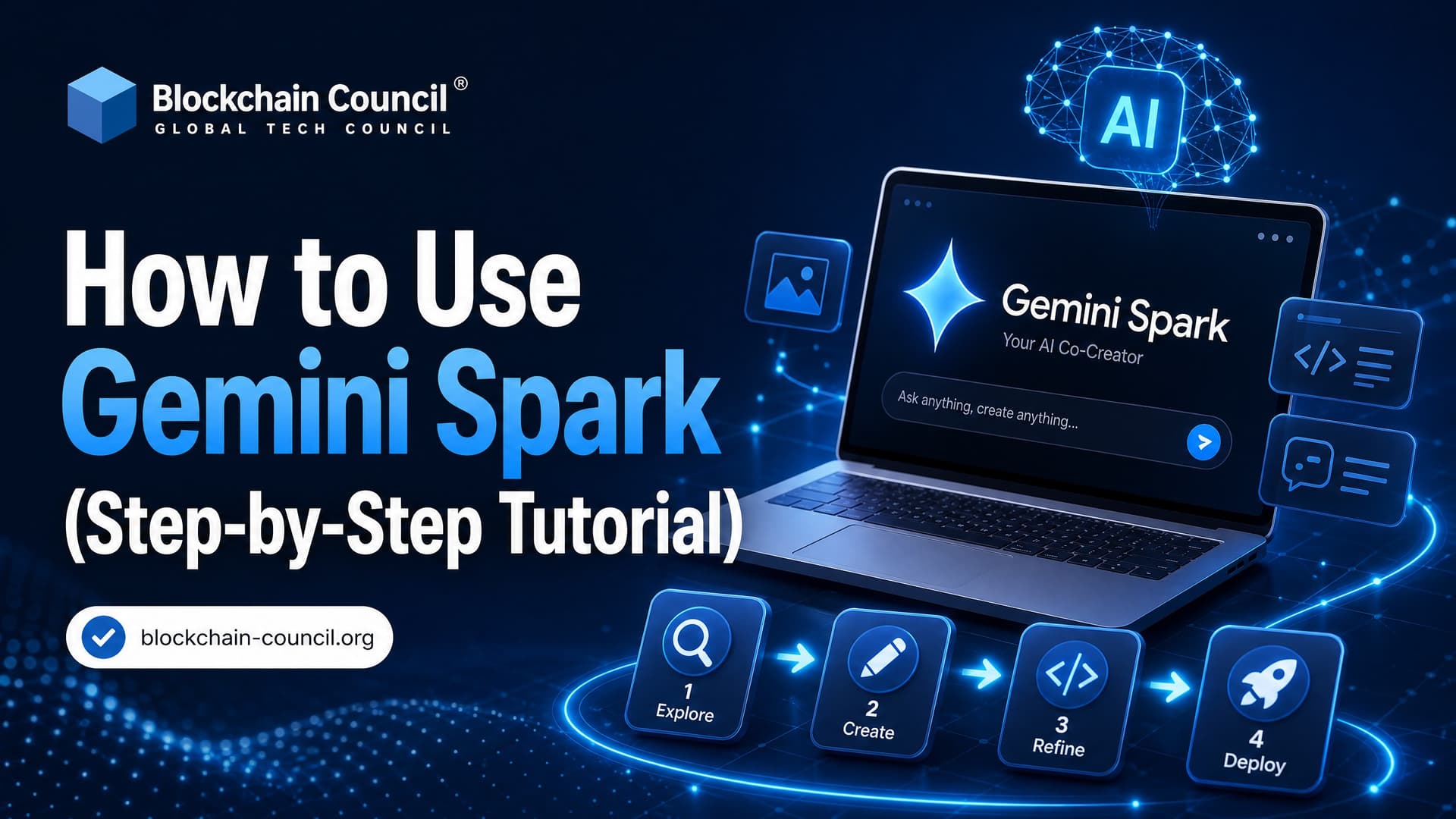
Treat Gemini Spark less like a chatbot and more like a background assistant that runs tasks across your Google apps. That single shift changes how you use it. Spark is built for recurring work: email triage, calendar briefings, document summaries, and scheduled updates that keep running in the cloud after you set them up.
One caveat before you begin. Availability varies by account type, region, Google rollout stage, and Workspace admin settings. If you do not see Spark yet, check your Gemini settings, update your app, and confirm whether your organization has enabled Gemini features for connected apps.

What Is Gemini Spark?
Gemini Spark is an always-on AI agent inside Google Gemini. Instead of waiting for a single chat prompt, Spark uses tasks, skills, and schedules to automate repeatable work. The practical difference is simple. A normal Gemini prompt might summarize one email thread. Spark can check your inbox every weekday morning, find priority messages, combine them with your calendar, and send you a briefing.
Think of Spark as three building blocks:
- Tasks: One-time jobs, such as summarizing unread emails or preparing a meeting brief.
- Skills: Reusable instruction sets that define how Spark should behave.
- Schedules: Time-based or event-based automations that run without you prompting each time.
That structure matters. Skip the task-testing stage and jump straight into schedules, and you will usually get noisy output. Test first. Automate second.
Before You Start: Check Access and Permissions
Before using Gemini Spark, make sure you have:
- A Google account with Gemini access.
- Access to the Gemini app or Gemini web interface.
- Permission to connect Google Workspace apps such as Gmail, Calendar, Drive, Docs, Sheets, and Slides.
- Approval from your Workspace admin if you use a company account.
Be careful with permissions. Spark becomes useful when it can read and act across your apps, but that also means you should connect only what you actually need. For a personal morning briefing, Gmail and Calendar may be enough. For sales workflows, you may need CRM access through supported partner integrations.
How to Use Gemini Spark: Step-by-Step Tutorial
Step 1: Open Gemini and Switch to Spark
Sign in to your Google account and open Gemini in the web interface or mobile app. In the left-hand navigation, look for Spark. Select it to move from standard Gemini chat into the Spark workspace.
You should see areas for tasks, skills, and schedules. The layout may change as Google updates Gemini, but those three concepts are the core of Spark.
Step 2: Enable Spark and Complete the Consent Flow
The first time you open Spark, Gemini may ask you to enable it. Read the consent screens slowly. They define which apps Spark can access and what actions it can take on your behalf.
Grant access in stages. Start with Gmail and Calendar if your first use case is a daily briefing. Add Drive, Docs, Sheets, or Slides only when your task needs them. This keeps the setup cleaner and reduces accidental overreach.
Step 3: Configure Memory and Personal Intelligence
Open Gemini settings, usually through the gear icon. Look for personal intelligence or memory settings. If memory is available and you choose to enable it, Gemini can use prior preferences to shape future Spark behavior.
Here is the trade-off. Memory improves personalization, but it also means you should review what Gemini stores. If you work with regulated data, client records, legal files, or health information, ask your organization before turning memory on. Do not guess.
Step 4: Connect Google Apps and Data Sources
Go to the connected apps area in Gemini or Spark settings. Enable the apps Spark needs for your workflow. Common options include:
- Gmail: Email summaries, sender-based prioritization, inbox triage.
- Calendar: Meeting briefs, conflict checks, daily schedules.
- Drive and Docs: Document summaries, draft preparation, research packs.
- Sheets: Lightweight reporting and structured summaries.
- Slides: Presentation review and content extraction.
If Spark supports partner apps through Model Context Protocol integrations in your account, connect them only after you have a defined use case. A CRM connection without clear instructions will not magically produce a good sales workflow.
Step 5: Create Your First Spark Task
Open the Tasks section and create a new task. Use plain language, but be specific. A vague prompt gives vague output.
Try this first task:
Summarize my unread Gmail messages from the last 24 hours. Group them into urgent, waiting on me, FYI, and newsletters. Highlight emails from my manager and any message that mentions a deadline. Return a bullet list with sender, subject, reason it matters, and suggested next action.
This prompt works better than summarize my email because it defines scope, categories, priority rules, and output format.
Step 6: Review the Output and Refine It
Do not automate the first version. Read the result. Check whether Gemini Spark missed important senders, included irrelevant newsletters, or over-prioritized routine messages.
Then refine with follow-up instructions such as:
- Exclude promotional emails unless they mention an invoice, renewal, or deadline.
- Only mark a message urgent if it requires action today.
- Keep every summary under 25 words.
- Add a section called Needs Reply Before Noon.
A small practitioner tip: label names matter. If your Gmail label is VIP Clients, type it exactly. Do not write important clients and expect Spark to infer the label every time.
Step 7: Turn a Good Task Into a Skill
Once the task behaves well, convert it into a skill. Skills are saved instructions you can reuse without rebuilding the prompt.
You can create a skill in three ways:
- From a completed task: Ask Spark to save the working instructions as a skill.
- Manually: Open Skills, create a new skill, name it, and paste detailed instructions.
- From a text file: Upload a prepared instruction file if your Spark interface supports it.
Name skills clearly. Morning Email Triage beats Email Helper. When you have twenty skills later, vague names become painful.
Step 8: Use a Skill in a New Task
To call a saved skill, create a new task and type @ or / in the prompt box. Spark should show available skills. Select the one you need, then add the current context.
If you type @ and nothing appears, the usual causes are simple: no skill has been saved, the skill is disabled, or the current account does not have permission to access it. Check Skills before assuming Spark is broken.
Step 9: Create a Schedule
Now automate. Open Schedules and create a new schedule from your tested task or saved skill.
For a daily briefing, configure:
- Trigger: Every weekday at 7:30 AM.
- Inputs: Gmail and Calendar.
- Skill: Morning Email Triage plus calendar summary instructions.
- Output: A short briefing inside Gemini or emailed to you.
- Format: Top priorities, meetings, conflicts, and suggested first action.
For event-based automation, you might trigger Spark when a new email arrives from a specific sender or label. Start narrow. A schedule that reacts to every incoming email becomes noise fast.
Step 10: Monitor, Debug, and Improve
Review scheduled outputs for the first week. Check for false positives, missed deadlines, and poor formatting. Edit the underlying skill rather than rewriting the whole schedule each time.
For business workflows, test on non-critical data first. If Spark is summarizing customer support messages, start with summaries only. Do not let it send replies or update records until your team has reviewed the behavior and permissions.
Best Gemini Spark Use Cases
Personal Productivity
- Daily email and calendar briefings.
- Meeting preparation from recent emails and Docs.
- Weekly planning summaries.
- Reminder lists based on deadlines in Gmail.
Content and Document Work
- Summarize long Google Docs into executive briefs.
- Rewrite technical content for non-technical readers.
- Prepare first drafts from notes stored in Drive.
- Extract action items from meeting notes.
Business Automation
- Summarize sales emails before pipeline meetings.
- Classify support requests by urgency.
- Create recurring team status reports.
- Prepare manager briefings from Docs, Sheets, and Calendar events.
To be blunt, Gemini Spark is not the right tool for every workflow. If you need strict transaction control, audit-heavy approvals, or deterministic process automation, a workflow platform with human approval gates may be safer. Spark is strongest when the work is language-heavy, repetitive, and reviewable.
Security and Governance Tips
- Use the least access needed for each workflow.
- Separate personal and company Google accounts.
- Avoid connecting sensitive systems until policies are clear.
- Review memory settings regularly.
- Keep a human review step for external communications.
- For teams, document each schedule, owner, connected apps, and purpose.
If you are building AI workflows at work, learn the basics of prompt design, AI risk, and agentic automation before giving agents broad permissions. Related Blockchain Council certifications can help here, including Certified Prompt Engineer™ for instruction design and Certified Artificial Intelligence (AI) Expert™ for broader AI systems knowledge.
Common Mistakes to Avoid
- Writing broad prompts: Replace manage my inbox with specific rules, categories, and output limits.
- Automating too early: Run a task manually several times before scheduling it.
- Ignoring permissions: Spark can only use apps you have connected and approved.
- Mixing too many goals: One skill should do one job well.
- Skipping monitoring: Agent outputs drift when your email patterns, labels, or team processes change.
Final Step: Build One Practical Workflow Today
Start with one low-risk workflow: a weekday morning briefing from Gmail and Calendar. Create the task, refine it twice, save it as a skill, and schedule it for tomorrow morning. After that, expand to Docs, Sheets, or team workflows only once the first automation is reliable. If your goal is professional AI adoption, pair this hands-on practice with structured learning in prompt engineering, AI governance, and agent design.
Related Articles
View All
AI & ML
Google Launches Gemini 4 Argon: Features and Capabilities
Google has launched Gemini 4 Argon, its flagship AI model for coding, finance, law, cybersecurity and science. Learn its key features, availability, pricing and safety details.

AI & ML
NVIDIA Nemotron 3.5 Lightning vs NVIDIA Cosmos 3: Key Differences and Use Cases
Compare NVIDIA Nemotron 3.5 Lightning and NVIDIA Cosmos 3, including their architectures, reasoning capabilities, modalities, performance goals, and use cases across agentic and physical AI.

AI & ML
Can Gemini Improve Itself? Google AI and Recursive Self-Improvement Explained
Can Gemini improve itself? Learn why Google AI does not self-rewrite its model today, but can power controlled recursive self-improvement loops.
Trending Articles
AWS Career Roadmap
A step-by-step guide to building a successful career in Amazon Web Services cloud computing.
Top 5 DeFi Platforms
Explore the leading decentralized finance platforms and what makes each one unique in the evolving DeFi landscape.
How Blockchain Secures AI Data
Understand how blockchain technology is being applied to protect the integrity and security of AI training data.