

Google Omni: How to Use Gemini Omni for Multimodal Video Creation
 Suyash Raizada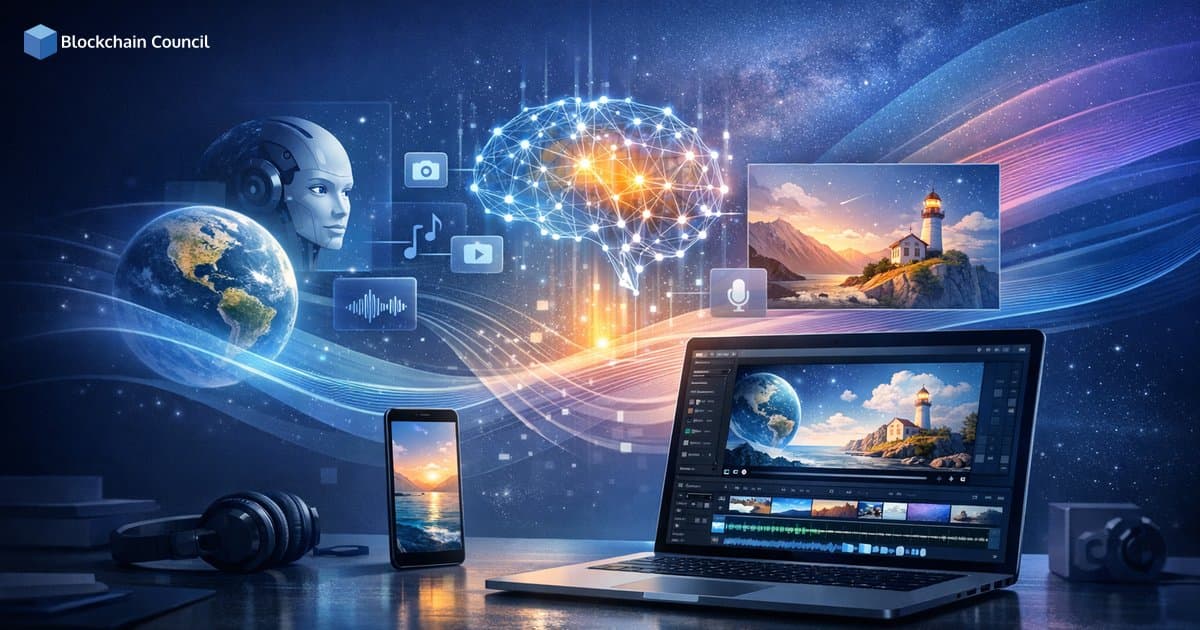
Google Omni (formally known as Google Gemini Omni) is Google DeepMind's native multimodal AI designed to create and edit video using a combination of text, images, audio, and video. For those familiar with earlier Gemini video tools, the key change is that Omni is positioned as the successor to Veo within the Gemini ecosystem, with the first widely shipped variant commonly referred to as Gemini Omni Flash. The practical benefit is a more unified workflow: you can generate a first draft quickly, then refine it through conversational, multi-turn edits while maintaining greater consistency in characters, motion, and scene logic.
This guide explains how to use Google Omni across the Gemini app, Google Flow, and YouTube tools, covering prompt patterns, editing tactics, and governance considerations such as SynthID watermarking.

What is Google Omni?
Omni is described by Google DeepMind as a native multimodal world model. In practice, that means it can ingest multiple input types together - text, image, audio, and video - within a single request and generate rich media outputs, starting with video. Google highlights two key properties:
- Native multimodality: inputs can be combined in a single request, rather than relying on a chain of separate specialized tools.
- World modeling and physical coherence: Omni is designed to produce more stable motion and object persistence by combining Gemini's reasoning capabilities with an understanding of real-world physical dynamics.
The primary use case today is video generation and conversational video editing, with broader output types and higher-capacity variants expected over time.
Where to Access Google Omni Today
Availability varies by region and account tier, but current rollout patterns place Google Omni within the broader Gemini ecosystem and selected creator products:
- Gemini app: accessible via the video generation area for eligible subscribers, depending on plan and region.
- Google Flow: a workflow environment for multi-scene planning and short-film style pipelines using Omni.
- YouTube tools: integrations in YouTube Shorts and YouTube Create for text-to-video and conversational edits on short-form content, rolling out in selected markets.
- Gemini API: an Omni endpoint is expected as part of the developer rollout, enabling programmatic video generation and editing workflows.
How to Use Google Omni in the Gemini App
The Gemini app experience is designed to be straightforward: provide inputs, generate a draft, then refine through conversation.
1) Open Gemini and Switch to the Video Generation Area
In the Gemini interface, navigate to the video generation or Omni-related tab (labeling may vary during rollout). This is where you will prompt Omni to create new clips or request edits to existing footage.
2) Choose Your Input Mode
Google Omni produces better results when given grounded reference material. Common input patterns include:
- Text only: describe what you want with clear, specific constraints.
- Text and image: upload a product shot, character design, or keyframe reference alongside your prompt.
- Text and video: upload a rough cut and request edits, style changes, or scene modifications.
- Text and audio: provide narration or timing cues to align pacing and on-screen actions.
3) Specify Constraints That Matter for Video
High-quality outputs typically come from prompts that include production constraints. Add details such as:
- Duration (for example, 10 seconds or 30 seconds)
- Aspect ratio (9:16 for Shorts, 16:9 for standard video)
- Style (cinematic, realistic, animated, product-demo, documentary)
- Camera language (wide shot, close-up, slow zoom, handheld, dolly movement)
- Accuracy constraints (scientifically accurate, historically accurate, suitable for medical education)
4) Generate the First Draft
After submitting your prompt and references, Omni generates a video draft. Because Omni is built as a single native multimodal engine, it is designed to maintain scene coherence across frames, including object continuity and motion realism.
5) Refine Through Multi-Turn Conversational Editing
Conversational editing is where Google Omni stands out. Rather than re-prompting from scratch, you direct iterative edits as you would with a creative collaborator. Examples include:
- Global edits: "Make the lighting warmer and shift the grade toward a golden-hour look."
- Local edits: "Change the car to a blue electric sedan, keep the background and camera path the same."
- Temporal edits: "Trim to 15 seconds, add a 2-second logo outro, and insert a close-up at the midpoint."
- Continuity edits: "Keep the same runner and outfit, but move the scene to a city at night."
For best results, reference specific elements and timestamps where possible (for example, "at 0:10") and avoid vague adjectives without supporting context.
6) Export, Share, or Continue in Flow or YouTube Tools
Once the clip meets your requirements, export it or route it into a downstream workflow such as Google Flow for multi-scene assembly, or YouTube Create for creator-focused editing and publishing.
Using Google Omni in Google Flow for Multi-Scene Workflows
Google Flow is designed for structured, repeatable production pipelines. Rather than generating a single clip, you can build an end-to-end workflow for short films, product teasers, or training modules.
A Practical Flow Pattern: Outline to Scenes to Export
- Create a scene outline: for example, "Hook, feature highlight, social proof, call-to-action."
- Generate shots per scene: provide text direction alongside reference assets such as brand images, product photos, or a style frame.
- Iterate with conversational reshoots: "Reshoot scene 2 as an overhead desk shot, keep the same product and color palette."
- Standardize reusable templates: teams can create consistent formatting for intros, lower-thirds, subtitles, and outros.
- Export to channels: publish directly or hand off to a finishing pipeline.
This approach is particularly useful for enterprises that require volume, consistency, and structured review steps within a single workflow.
Using Omni in YouTube Shorts and YouTube Create
In YouTube-facing tools, Omni is oriented toward short-form production. Common creator workflows include:
- Text-to-Short: prompt a 9:16 clip with a hook-first script and fast pacing.
- Edit existing footage: upload a face-cam clip and request background changes, B-roll inserts, or overlays.
- Conversational finishing: "Add subtitles, tighten silences, and make the intro more energetic."
For teams producing consistent Shorts at scale, treat prompts as reusable creative briefs with standardized length, pacing, and brand-safe style constraints.
Prompt Templates for Google Omni
The templates below are designed to be adapted for common use cases. The principle is to combine objective constraints - time, format, shots - with reference assets whenever possible.
Template 1: Product Demo (Short-Form)
Prompt: "Create a 15-second 9:16 product demo video for [product]. Use a clean studio background, bright soft lighting, and three shots: (1) hero shot, (2) close-up of key feature, (3) lifestyle shot. Add on-screen text captions for each feature. Keep it brand-safe and realistic."
Template 2: Edit an Existing Clip
Prompt: "Using the uploaded video, keep the speaker unchanged. Replace the background with a modern office. Add subtle B-roll overlays related to [topic] at 0:05 and 0:12. Keep audio natural and pacing tight."
Template 3: Training or Onboarding Content
Prompt: "Create a 45-second training clip explaining [procedure]. Use clear step-by-step visuals, simple diagrams, and high-readability captions. Keep it accurate and suitable for workplace training."
Tips for Improving Quality, Consistency, and Cost Control
- Ground the model with references: include reference images, brand style frames, or a rough cut to reduce ambiguity and improve output alignment.
- State explicitly what must not change: for example, "Keep the same character, outfit, and face."
- Use standard shot language: wide, medium, close-up, pan, tilt, slow zoom. This generally reduces unpredictable camera movement in generated footage.
- Iterate in small steps: request one or two changes per turn to avoid unintended edits cascading through the clip.
- Monitor generation credits: some platforms charge per generation, so test shorter drafts first and scale up once the style is confirmed.
Responsible Use: SynthID Watermarking and Governance
Google states that Omni-generated videos include SynthID watermarking, an imperceptible digital watermark that can be verified in supported Google surfaces including Gemini, Chrome, and Search. For organizations, this supports content provenance and audit trails.
Watermarking alone is not a complete governance solution. Teams should also implement:
- Human review for factual accuracy, particularly in science, medical, legal, and financial content.
- Brand safety checks covering visuals, claims, and tone before publication.
- Disclosure policies where required by platform terms or applicable regulations.
Developer Outlook: Using Omni via API
As Gemini API access expands to Omni endpoints, developers can integrate Google Omni into products such as creative SaaS platforms, e-learning systems, and content operations pipelines. Common architecture patterns include:
- Batch generation: generate multiple variants per creative brief, then select the best through human review.
- Template-driven creatives: structured prompts that map campaign parameters to consistent video outputs at scale.
- Workflow automation: combine AI agents and orchestration tools to refresh training or marketing content on a defined schedule.
Professionals looking to build expertise in this area may benefit from structured learning pathways covering AI and generative AI fundamentals, particularly those focused on operationalizing multimodal generation within enterprise workflows.
Conclusion
Google Omni brings native multimodal generation and conversational editing into the Gemini ecosystem, with a practical focus on video creation and iterative refinement. To use Omni effectively, start with the right entry point - the Gemini app for quick drafts, Google Flow for multi-scene pipelines, and YouTube tools for Shorts - ground your prompts with reference media, and refine outputs through precise multi-turn edits. Treat governance as an integral part of the workflow: use SynthID provenance signals, apply human review for high-stakes content, and standardize prompt templates to maintain consistent quality at scale.
Related Articles
View All
AI & ML
Google Launches Gemini 4 Argon: Features and Capabilities
Google has launched Gemini 4 Argon, its flagship AI model for coding, finance, law, cybersecurity and science. Learn its key features, availability, pricing and safety details.

AI & ML
Can Gemini Improve Itself? Google AI and Recursive Self-Improvement Explained
Can Gemini improve itself? Learn why Google AI does not self-rewrite its model today, but can power controlled recursive self-improvement loops.

AI & ML
Google Playground: Create AI Games Without Coding
Learn what Google Playground is, how it uses generative AI to turn text prompts into browser games, how to create your first game, what it costs, how it compares with other no-code tools, and what limits to expect.
Trending Articles
AWS Career Roadmap
A step-by-step guide to building a successful career in Amazon Web Services cloud computing.

Top 5 DeFi Platforms
Explore the leading decentralized finance platforms and what makes each one unique in the evolving DeFi landscape.
Claude AI Tools for Productivity
Discover Claude AI tools for productivity to streamline tasks, manage workflows, and improve efficiency.