AI Tools for Graphic Designers


If you want to become a graphics designer and are starting from zero, the fastest way to become a graphic designer is with AI tools. You must stop hunting for “the best tool” and instead pick a simple stack that covers three needs:
- Layout tool (where the final design gets built)
- Generator (for fast visual ideas)
- Fixer tool (to clean images like a designer)
Here are three beginner-safe starting stacks. Pick one and stick with it for 2 weeks.

Stack 1: Social media posts, thumbnails, flyers (most beginners)
- Layout: Canva (Free to start)
- Generator: Canva Magic Media or Ideogram (optional)
- Fixer: Clipdrop or remove.bg
Stack 2: Professional ad creatives and photo editing
- Layout + Editing: Adobe Photoshop
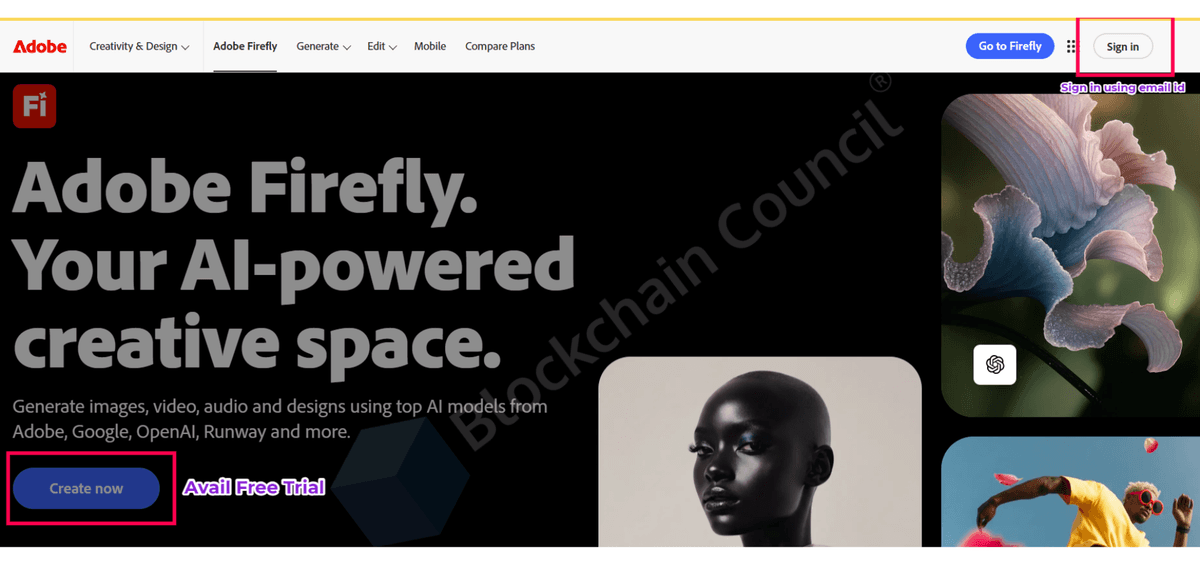
- Generator: Adobe Firefly
- Quality: Topaz Gigapixel (optional)
Stack 3: UI and modern layout (apps, landing pages, clean design systems)
- Layout: Figma
- Generator: Ideogram or Midjourney
- Fixer: Clipdrop (optional)
Now use this simple rule: build one project end to end today, even if it is not perfect. You improve by finishing, not by collecting tools. To have a better grasp in the topic, take up an AI course.
The real problem and solution
Most beginners get stuck in three places:
- “I can generate images, but my designs still look messy.”
- “I don’t know which tools are free, which are paid, and what is actually worth it.”
- “I want a clear roadmap that tells me what to make for a portfolio.”
This guide solves that by giving you:
- A clean tool map with names, prices, features, pros, cons
- A copyable workflow for your first 10 projects
- A portfolio plan and a 30-day roadmap
- Practical licensing and safe-use basics so you do not create risky work
AI as your assistant
AI is not your style. It is your speed.
Use AI for these three jobs:
- Generate ideas fast
Concepts, styles, moodboards, variations, poster directions
- Edit and polish assets
Remove objects, extend backgrounds, clean cutouts, upscale quality
- Speed up layouts
Social posts, flyers, banners, thumbnails, simple UI mockups
Your work becomes “designer-level” when you combine AI speed with fundamentals like typography, spacing, and consistent color.
The 5 big jobs your AI graphics toolkit must cover
A beginner-friendly toolkit should cover:
- Layout: posters, carousels, ads, thumbnails
- Assets: icons, illustrations, backgrounds
- Photo edits: remove background, cleanup, lighting
- Export: web sizes, print-ready files, correct formats
- Consistency: same fonts, margins, brand colors, repeatable style
If your output feels random, it is usually because your “consistency” system is missing, not because the AI is weak.
AI tools for Graphics Designers
Canva (the fastest start for beginners)
Best for
- Social media posts, carousels, stories
- Flyers, posters, presentations
- Quick brand kits and fast client-style assets
Why it helps when you know nothing
- Templates remove blank-page stress
- You can build final layouts without learning advanced software first
AI features you will actually use
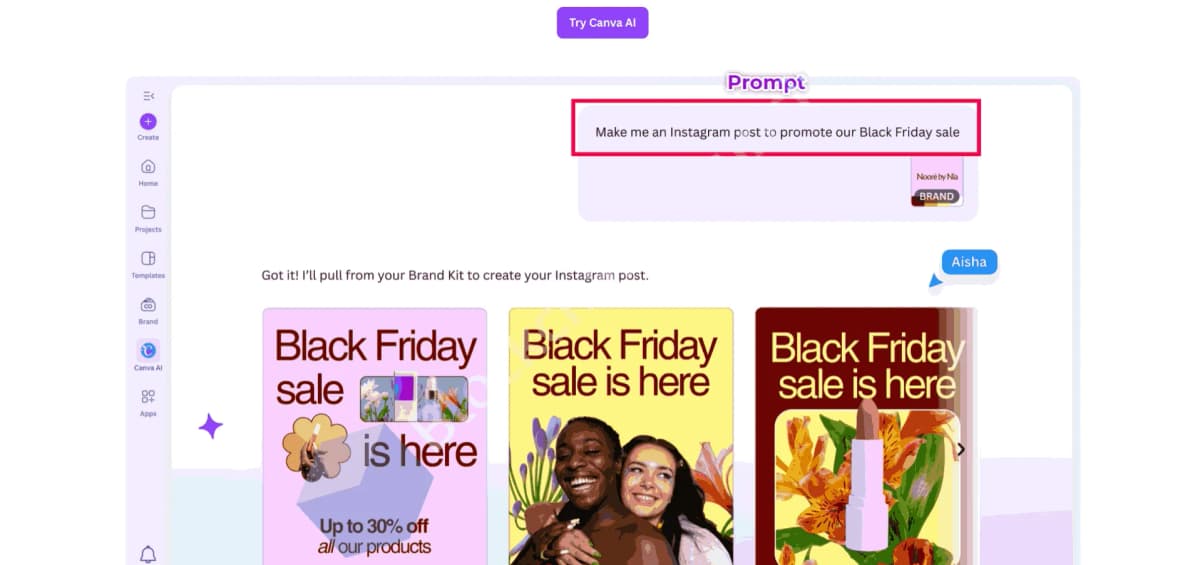
- Canva’s Magic Studio is positioned as “first draft, fast”
- Tools like Magic Design and Magic Media generate visuals and video inside your design flow
Pricing (reference)
- Free plan exists
- Canva Pro is commonly listed around $12.99/month or $119.99/year (pricing varies by region and can change)
- Canva has discussed standard Teams pricing like US$10/month per person starting at 3 people (packaging changes over time)
Pros
- Easiest learning curve
- Templates teach layout patterns quickly
- Fast exports for content and clients
Cons
- Less control than pro editors for complex photo edits
- Some premium assets and features are locked behind paid tiers
Adobe Firefly + Photoshop (best for serious editing and professional results)
Best for
- Ad creatives and banner design
- Photo manipulation, composites, product visuals
- Precision edits that require control
What makes Firefly different
- Adobe describes Firefly text-to-image as designed to be commercially safe, trained on licensed Adobe Stock and public domain content
Photoshop AI feature you will use most
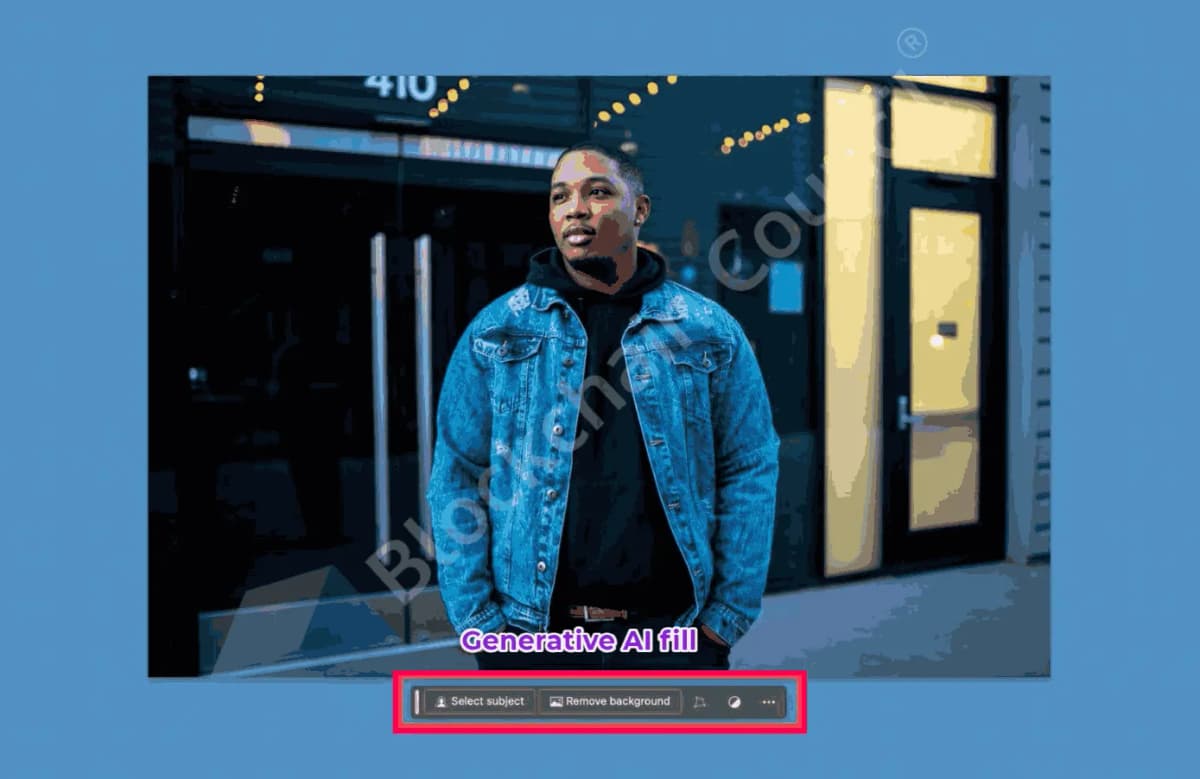
- Generative Fill for adding or removing elements using prompts
- Adobe highlights non-destructive workflows and partner AI models
Pricing (reference)
- Photoshop plans vary by region and offers, commonly starting in the low-to-mid US$20s/month
- Adobe also sells Firefly plans. An example shown is Firefly Pro at US$19.99/month with 4,000 credits on Adobe’s plans page
Credits explained simply
- You get generative credits each month
- Generating content uses credits, like spending tokens from a budget
- Some partner model generations can cost more credits per output
Pros
- Industry-standard professional skills
- Best control for client-ready editing
- Strong finishing quality
Cons
- Learning curve is higher than Canva
- Subscription plus credits can feel confusing early
Figma (best for UI and clean modern layout)
Best for
- UI screens, landing pages, wireframes
- Layout systems that look clean and consistent
- Collaboration workflows
AI feature to know
- Figma says “First Draft” can turn ideas into editable wireframes or designs in a couple of minutes, and it is available on paid plans
Pricing
- Free tier exists
- Paid plans are seat-based and shown on the pricing page
Pros
- Great for learning clean layout and structure
- Collaboration is excellent
- Perfect for UI case studies and portfolios
Cons
- Not a full photo editor like Photoshop
- For heavy image generation, you will still use a generator tool
AI graphics designing tools by job
Generate design concepts fast (moodboards, poster directions, campaign looks)
Use these when you need visual options quickly.
- Good for a safer commercial starting point
- Fits naturally with Photoshop workflows
- Generates visuals inside Canva designs
- Great for beginners who want simple, fast output
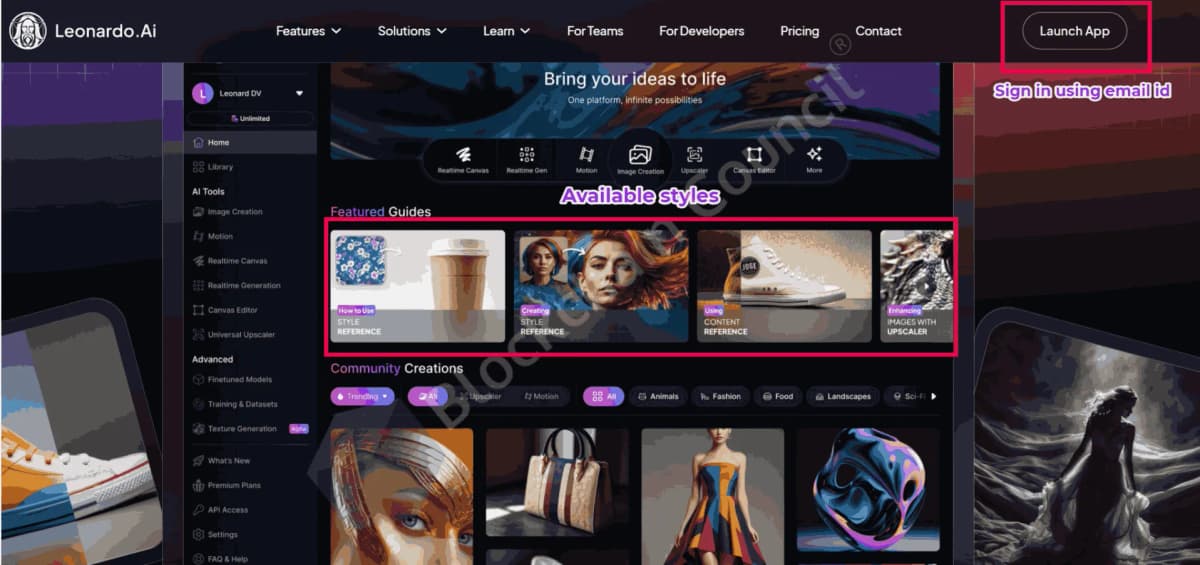
- Built for lots of iterations and creator-friendly controls
- Often offers a free tier with daily tokens, then paid tiers with token limits (examples shown include Apprentice, Artisan, Maestro, with pricing that can vary, such as an example around $12 for an entry tier)
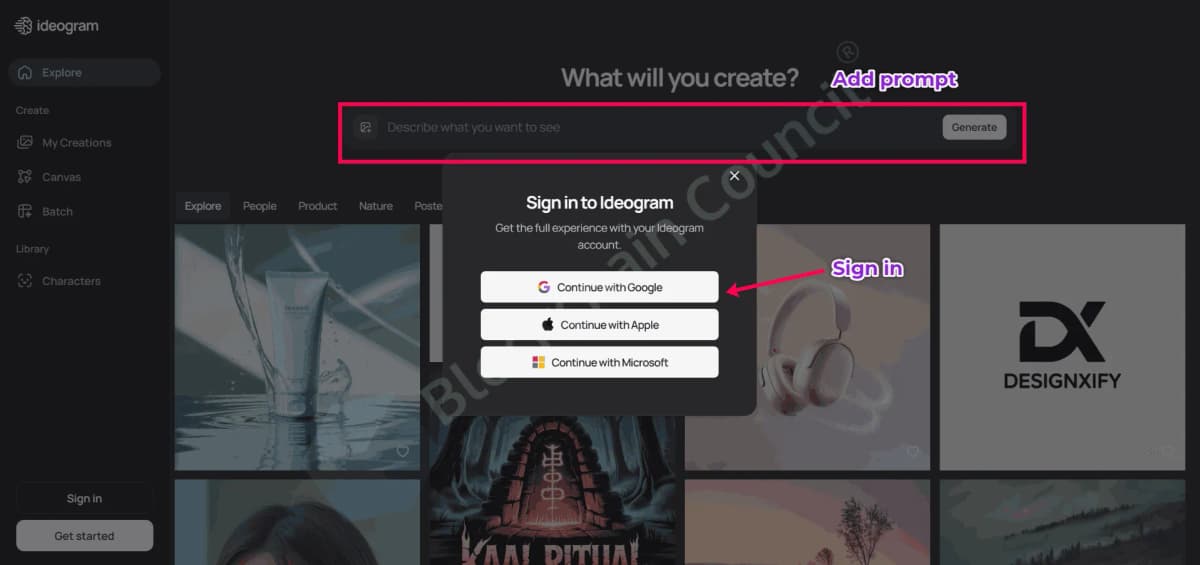
- Popular for designs where readable text inside generated images matters (posters, title cards)
- Strong aesthetic quality for moodboards and campaign directions
- Not a layout editor, so you still finish in Canva, Figma, or Photoshop
Beginner tip that fixes most frustration
Generate directions, not “final designs.”
Example: “3 poster styles for a coffee shop launch: minimal, retro, luxury.”
Make vectors, icons, and scalable illustrations
Use this when you want assets that stay sharp at any size.
Recraft
- Text-to-vector style generation
- Can export scalable, SVG-style output
Beginner portfolio use
Create one consistent icon set (10 icons) for a fictional brand.
Important ownership rule
Recraft states free-plan images are public and owned by Recraft, while paid plans grant full ownership and commercial rights.
Fix and polish images quickly (designer cleanup tools)
Use these when an image looks “almost right” but needs finishing.
Photoshop Generative Fill
- Pro-grade add and remove edits using prompts
- Best for precision and control
remove.bg
- Automatic background removal
- Great for product shots, thumbnails, catalog cutouts
Pricing reference:
- remove.bg is credit-based. An example shown is 200 credits/month for $35.10/month billed yearly.
Clipdrop
- Cleanup toolset: remove objects, defects, people, or text
- Also includes tools like relight, upscaling, uncrop, and quick generation
- Free tier has daily limits and Pro increases limits and enables higher-resolution output
- Pricing can display dynamically by region
Topaz Gigapixel
- Upscale and restore detail, including face recovery
- Useful for print or crisp exports when your source image is not sharp
Pricing reference:
- Topaz lists Gigapixel pricing and has shown it starting at $12/month on its product page (offers can change)
Motion and video tools (optional, but a portfolio advantage)
If you can make motion posters or short video ads, you stand out.
Runway
- Runway Gen-3 Alpha supports text-to-video and image-to-video
- Highlights control modes like Motion Brush and camera controls
- Pricing tiers exist on the pricing page, and costs can climb if you generate a lot of video
Canva text-to-video
- Canva notes Magic Media text-to-video is powered by Runway inside Canva, which is useful for “easy mode” video content
Free vs paid
Free plans are great for learning, but they have four limits
- Daily generation limits or low credits
- Lower-resolution exports
- Limited premium assets or templates
- Some outputs may be public or have different ownership rules on free tiers (example: Recraft)
Paid plans are worth it when one of these becomes true
- You need consistent brand features and faster workflow
- You need high-resolution exports for clients
- You hit daily limits constantly
- You need private generations for client work
Beginner-safe upgrade order that makes sense
- Canva Pro (if you do lots of social content and fast deliverables)
- Add a fixer tool (Clipdrop Pro or remove.bg credits if you do many cutouts)
- Add Photoshop + Firefly (when you want professional editing control)
- Add Topaz Gigapixel (only if you need high-res or print)
A simple workflow for your first 10 projects (copy and use)
Example project: Instagram launch kit for a new bakery
Step 1: Brief (10 minutes)
Write:
- Brand name
- Audience (students, families, premium)
- 3 adjectives (warm, modern, playful)
- Deliverables (3 posts, 3 stories, 1 banner)
Step 2: Generate visual directions (30 minutes)
Use Firefly or Canva to create 12 concept images:
- 4 minimal
- 4 retro
- 4 luxury
Step 3: Pick 1 direction and clean assets (30 to 60 minutes)
- Remove background: remove.bg
- Remove unwanted objects: Clipdrop Cleanup
- Upscale if needed: Topaz Gigapixel
Step 4: Layout (60 minutes)
Build in Canva (beginner) or Photoshop (advanced)
Use a simple grid:
- Big headline
- Hero image
- Small supporting details
- Logo spot
Step 5: Export and document (10 minutes)
- Save final images
- Save 2 screenshots showing before vs after
- Write 3 lines: goal, tools used, outcome
This documentation becomes your portfolio story.
10 AI designing projects
A strong beginner portfolio is not random art. It is proof you can solve business design tasks.
Create these 10 projects:
- 1 brand kit for a fictional brand (logo direction, colors, fonts, icon style)
- 2 posters (event promo, product launch)
- 2 social carousels (educational, promotional)
- 2 ad creatives (discount offer, product highlight)
- 1 mini catalog page (5 products, consistent pricing tags)
- 1 YouTube thumbnail set (3 variations in one style)
- 1 motion poster or short video ad (optional, but powerful)
For each project, include:
- The brief
- 1 moodboard or direction set
- 1 before vs after edit
- Final exports in the correct size
A 30-day roadmap
Week 1: Layout basics (Canva or Figma)
Focus:
- Typography hierarchy (title, subtitle, body)
- Spacing and alignment
- Simple grid layouts
Deliverables:
- 3 posts
- 1 carousel
- 1 poster
Week 2: Add one generator
Pick based on output:
- Text-heavy poster ideas: Ideogram
- Strong moodboards and aesthetics: Midjourney
- Adobe workflow and safer commercial start: Firefly
- Lots of iterations: Leonardo.Ai
Deliverables:
- 2 campaign directions for one brand
- 6 concept visuals per direction
- 3 finished designs from the best direction
Week 3: Add a fixer tool for polish
Choose:
- Clipdrop for cleanup and relight
- remove.bg for background removal at scale
- Photoshop Generative Fill for precision edits
Deliverables:
- 10 before-after edits
- 2 finished ad creatives that look clean
Week 4: Build portfolio-ready sets
Deliverables:
- 2 posters
- 2 social carousels
- 1 product ad mockup
- 1 brand kit refresh with consistent style
Prompt templates beginners can reuse
The direction-first prompt template
Use this to generate usable “campaign directions”:
- Create 3 distinct art directions for a [business type] launch campaign
- Direction 1 style: [minimal, lots of white space, clean background]
- Direction 2 style: [retro, textured, warm tones]
- Direction 3 style: [luxury, dark background, premium accents]
- Leave clear empty space for headline text
- No logos, no brand names, no famous characters
Then add the real text in Canva, Figma, or Photoshop so typography stays clean.
The beginner social post prompt template
- Create a background illustration for an Instagram post for a [brand type]
- Mood: [calm / energetic / premium]
- Colors: [choose 2 to 3 colors]
- Composition: leave space at top for headline and bottom for CTA
- Keep the design clean and uncluttered
The fundamentals you must learn alongside AI
AI can generate visuals. Fundamentals make your work look professional.
Typography
- Use size hierarchy: title bigger, body smaller
- Use 1 to 2 fonts per design
- Keep line spacing comfortable
Spacing and alignment
- Keep margins consistent
- Align elements to an invisible grid
- Repeat spacing patterns across posts
Color
- 1 primary, 1 secondary, 1 accent
- Keep contrast readable
- Avoid too many strong colors at once
Layout
- One clear focal point
- Simple structure: headline, hero, support, CTA
- Less clutter beats more effects
Export basics
Common formats
- PNG: web graphics, sharp text, supports transparency
- JPG: photos, smaller file size, no transparency
- PDF: print-ready, multi-page documents
- SVG: scalable vector icons and illustrations (useful with Recraft)
A simple professional habit
Name files clearly:
- BrandName_Post01_1080x1350.png
- BrandName_Story01_1080x1920.png
- BrandName_Banner01_1920x1080.png
Licensing and safe-use basics
This is the beginner-safe approach that avoids trouble.
Key licensing notes you were given
- Adobe states Firefly text-to-image is designed to be commercially safe and trained on licensed Adobe Stock and public domain content
- OpenAI’s Terms state that as between you and OpenAI, you own the Output, with terms and legal limits
- Midjourney states you own what you create, with exceptions like needing permission if you upscale someone else’s image, and a higher plan requirement for companies over $1M revenue
- Stability AI’s Community License allows commercial use under $1M annual revenue, with an enterprise license needed above that threshold
- Recraft states free-plan images are public and owned by Recraft, while paid plans grant full ownership and commercial rights
Practical beginner rules that keep you safe
- Do not generate famous characters, brand logos, or real company identity lookalikes
- Build fictional brands for portfolio work
- Keep prompts original and avoid copying a real brand style too closely
- For client work, prefer plans that allow private generations and clear commercial rights
Common mistakes
Mistake 1: relying on AI text inside images as final typography
Fix:
- Generate visuals as backgrounds or illustrations
- Add text in Canva, Figma, or Photoshop
Mistake 2: trying to perfect one design for hours
Fix:
- Create 5 variations quickly
- Pick the best one, then polish
Mistake 3: using too many tools at once
Fix:
- Use 1 layout tool + 1 generator + 1 fixer tool for 2 weeks
Mistake 4: designing without a mini brand kit
Fix:
- Choose 2 fonts, 3 colors, and one icon style first
- Then design everything from that kit
Mistake 5: not showing process in your portfolio
Fix:
- Save before-after screenshots
- Add 3 lines explaining the goal and tools used
A simple checklist before you pay for any tool
Use this checklist to avoid wasting money:
- Do you need layout help or image generation more right now? Most beginners need layout first.
- Is commercial use clearly described on your plan?
- Will credits or tokens run out quickly for your usage?
- Can you export the formats clients need (PNG, JPG, PDF, sometimes SVG)?
- Do you need private generations and ownership rights?
The shortest path to becoming an AI-powered graphic designer
Start with layout. Build consistency. Use AI for speed.
- Pick a beginner stack and stick with it
- Build a mini brand kit before designing
- Follow the 5-step workflow for each project
- Document before-after edits and write short project notes
- Complete 10 practical projects, not random designs
That combination is enough to build a portfolio that looks real, even when you start from zero. Keep the learning streak on with a tech certification. And to know the ins and outs of the marketing, go for a marketing and business certification.